
You create an agent with + next to “Direct messages” (New agent), on iPhone with + → New agent. The wizard has six steps; ↵ moves on, in multi-line fields ⌘ ↵. Everything can be changed later. Every agent also has its own voice for voice calls; you pick it when creating it or later when editing, and can listen to it first.
1. Name
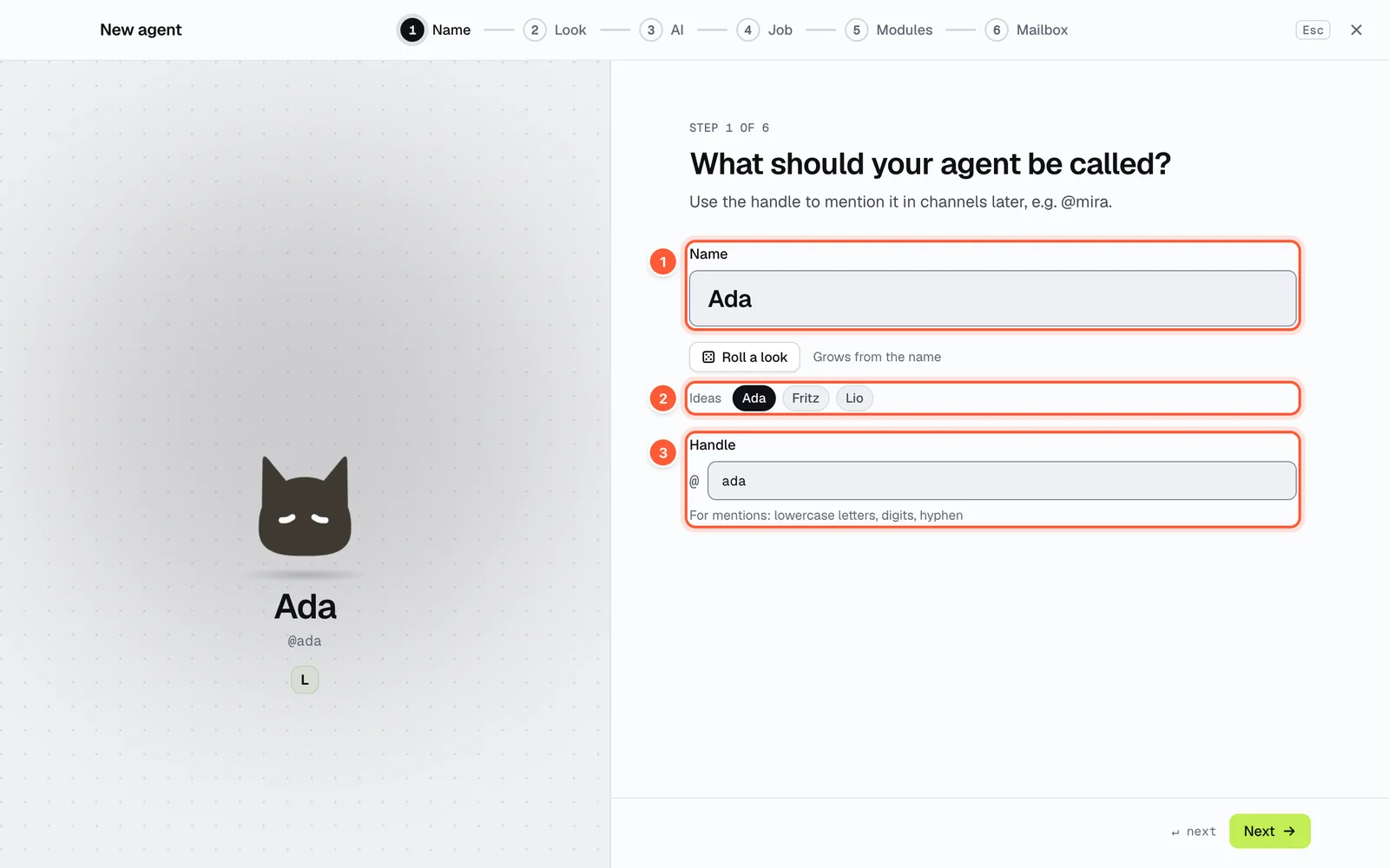
- Name
- Ideas to tap
- Handle for mentions
Give the agent a name. It becomes the handle (lowercase letters, digits, hyphen) you use to mention it, e.g. @ada.
2. Look
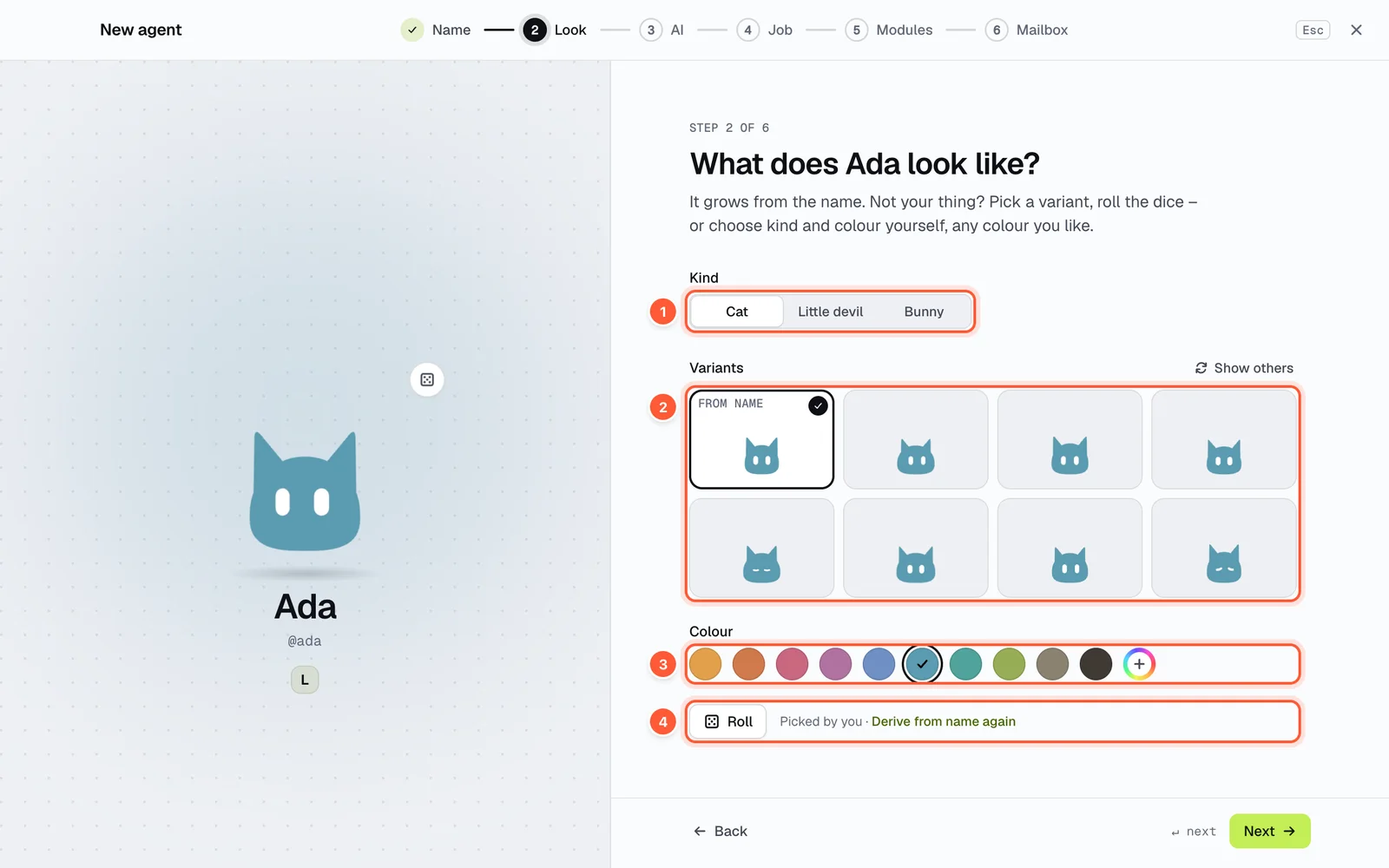
- Kind: cat, little devil, bunny
- Variants
- Colour, including a custom one
- Roll or derive from the name again
The look grows from the name: same name, same creature – on every device. Don't like it? Pick a kind (cat, little devil, bunny), a variant or a colour, or roll the dice. Custom colour opens a colour picker with an eyedropper.
3. AI
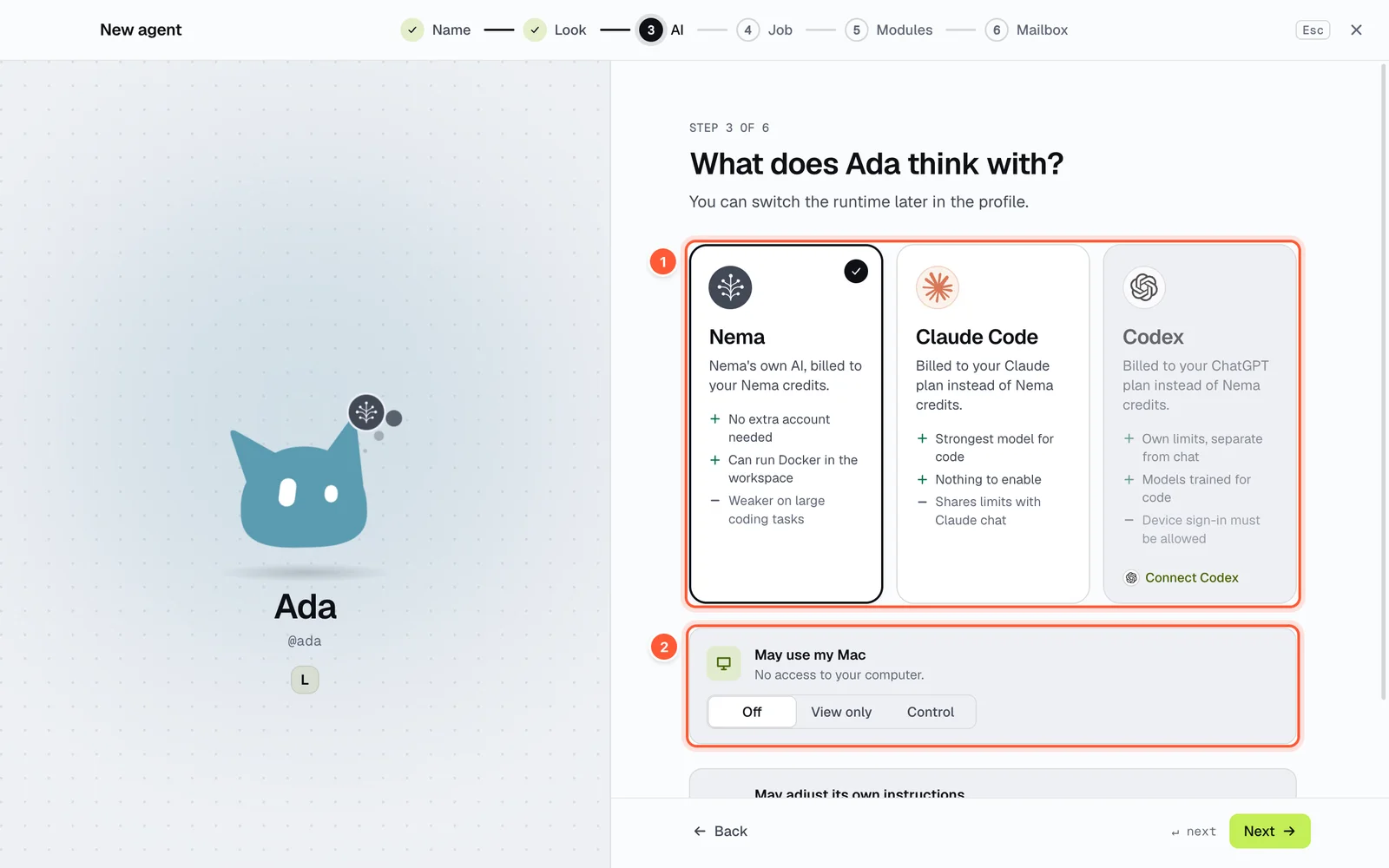
- The runtime: Nema, Claude Code or Codex
- May use my Mac: Off, View only, Control (below: May adjust its own instructions)
Here you choose what the agent thinks with – the runtime:
| Runtime | Runs on | Strengths and limits |
|---|---|---|
| Nema | your Nema credits | no extra account needed, can start Docker in the workshop; weaker on big code tasks |
| Claude Code | your Claude subscription (Pro or Max) | strongest model for code; shares limits with the Claude chat |
| Codex | your ChatGPT subscription (Plus, Pro, Team or Business) | own limits, separate from the chat; device login must be allowed |
Claude Code and Codex use no Nema credits. How to connect the accounts is described under Connect runtimes.
In the same step:
- Workshop: for Claude Code and Codex you switch on the agent's own environment with shell, files and web here – see Workshop and previews.
- May use my Mac: Off, View only or Control – see Control your Mac or PC.
- May adjust its own instructions – see Instructions and memory.
4. Job
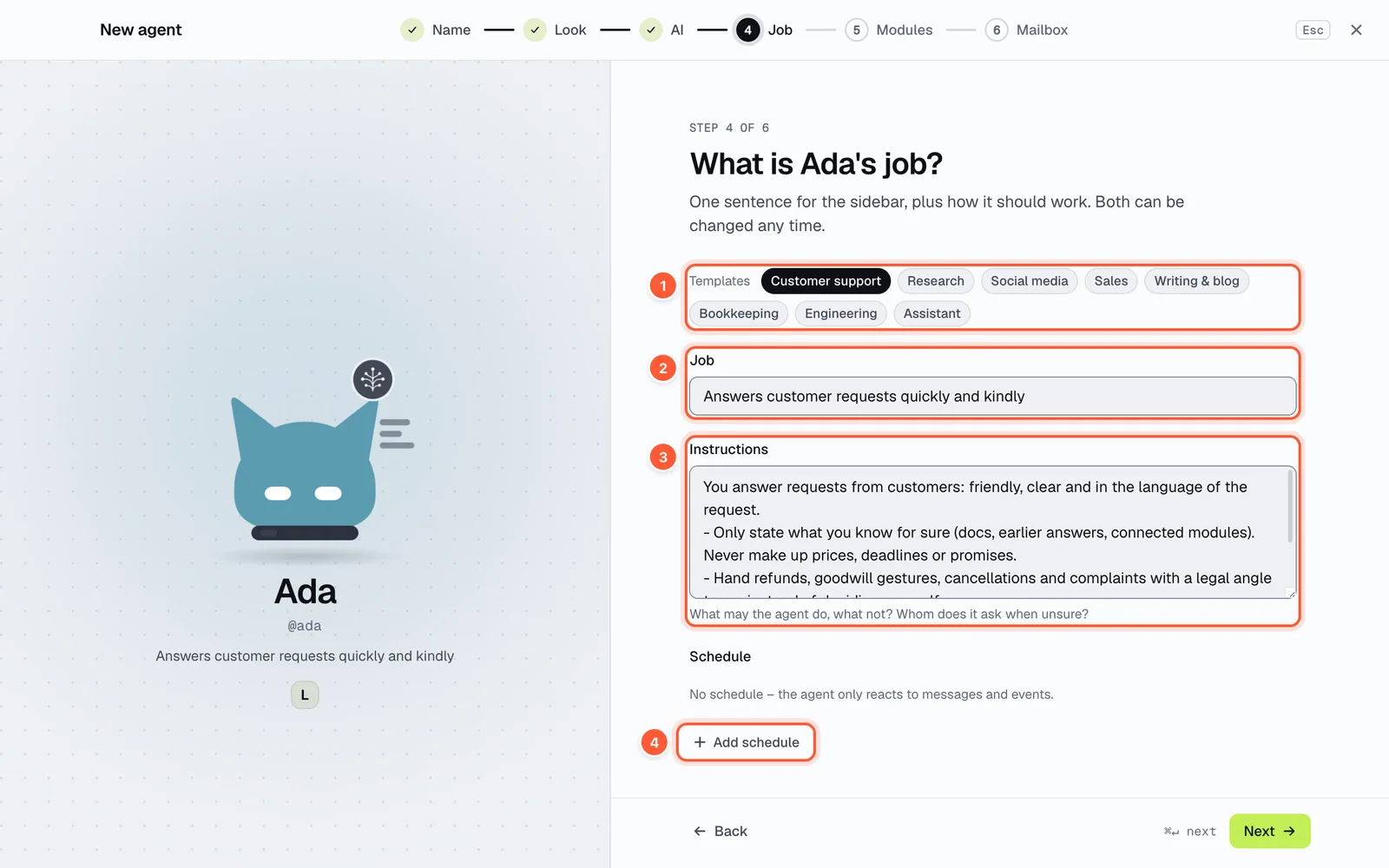
- Templates
- Job – one sentence for the sidebar
- Instructions
- When to use
- Add schedule
- Templates prefill job and instructions: Customer support, Research, Social media, Sales, Writing & blog, Bookkeeping, Engineering, Assistant.
- Job: one sentence on what the agent does around the clock. It appears in the sidebar and helps the app decide who answers a message without @ (see Who answers?).
- Instructions: how it works – what it may and may not do, whom it asks when unsure.
- When to use: what this agent should be picked for in channels without @, e.g. “invoices, open items, payment reminders”. The app reads it together with name, job and description when it decides who answers (see Who answers?). Optional; on the phone the field sits in its own section below.
- Schedule: optional, so it starts on its own regularly – see Schedules and reminders.
5. Modules
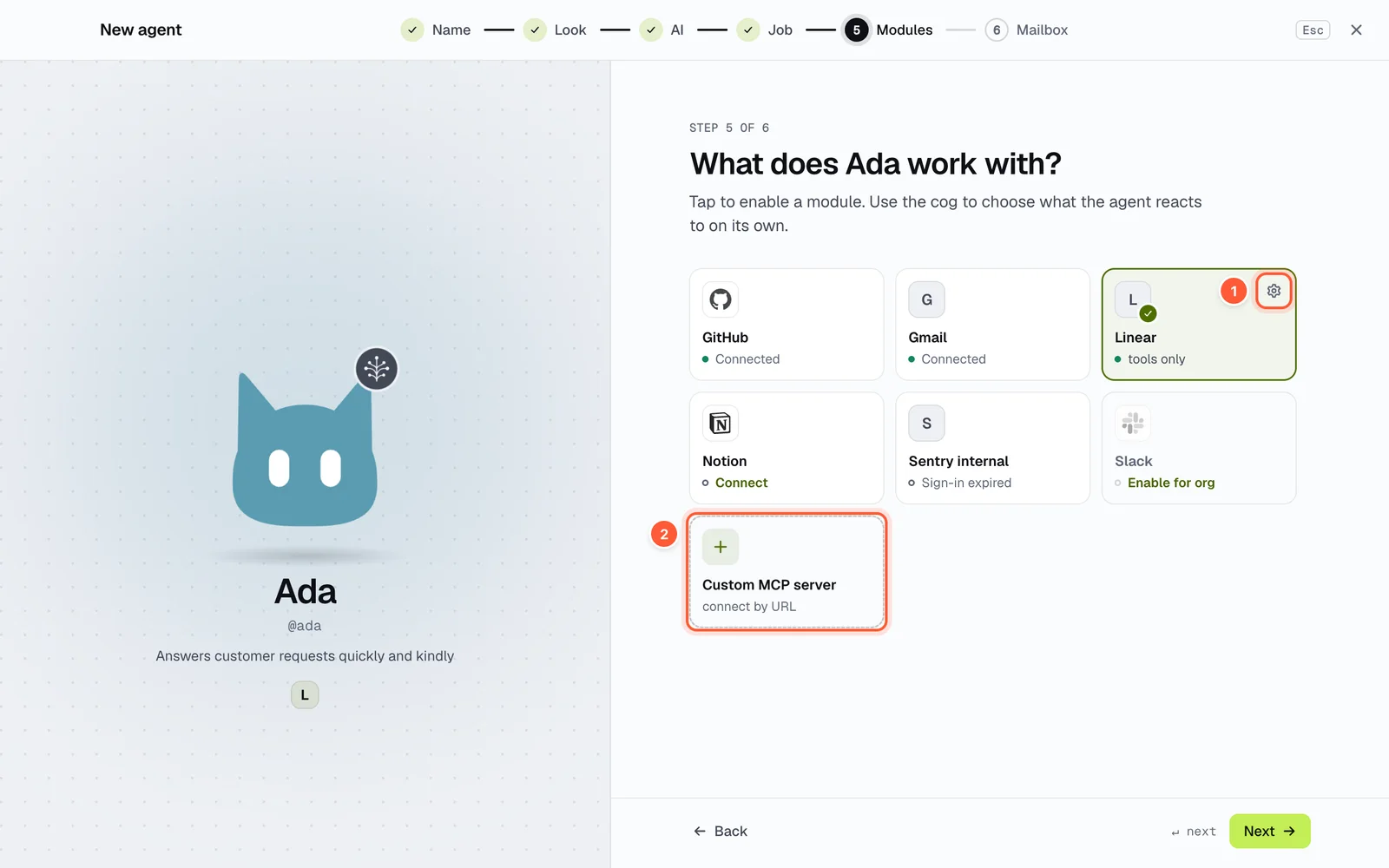
- The gear of an active module: events and blocked tools
- Custom MCP server by URL
Tapping a tile enables a module for this agent. The gear sets which events it reacts to on its own and which tools are blocked – see Modules and events. The Custom MCP server tile connects a server by URL (Custom MCP servers).
6. Mailbox
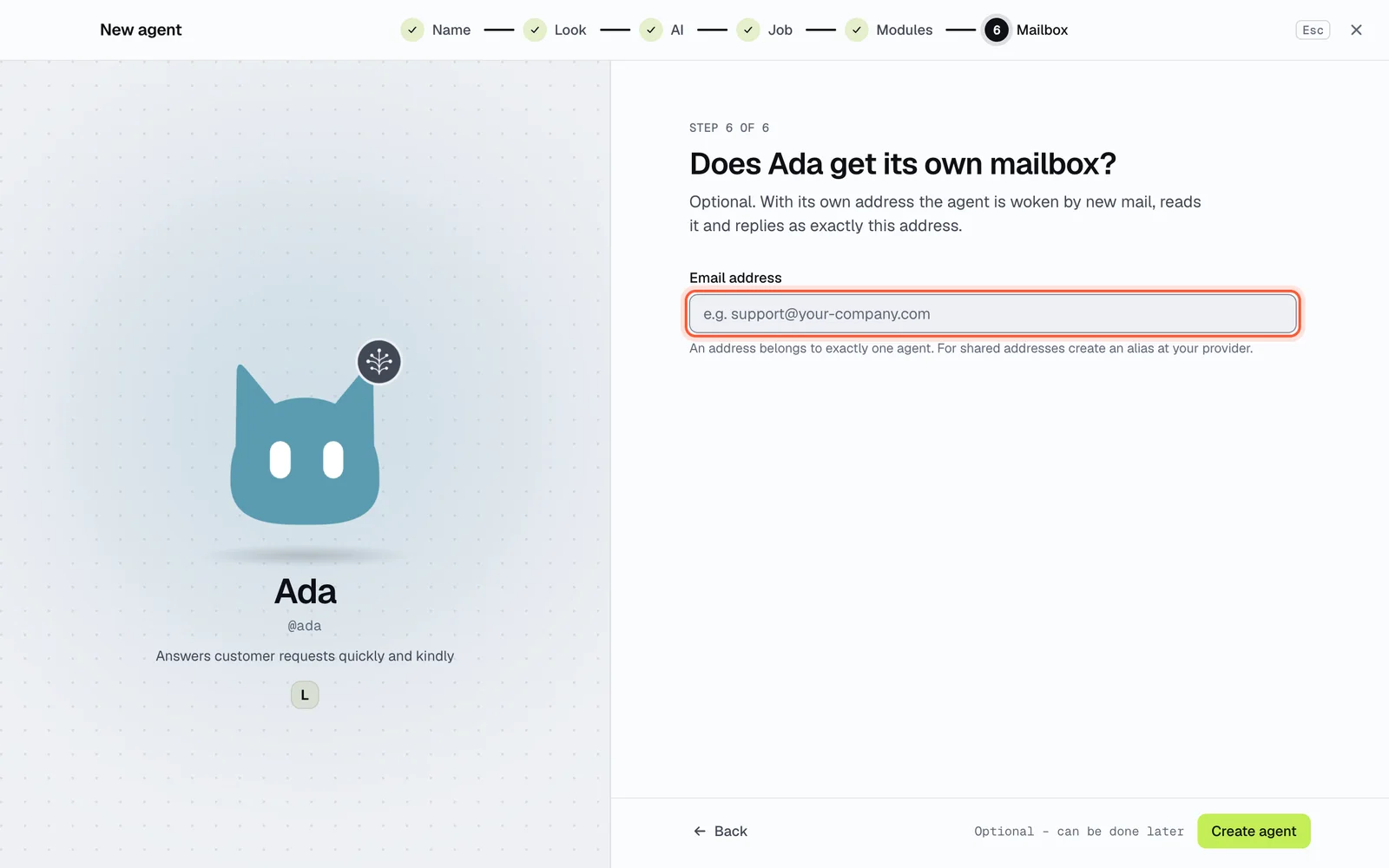
Optionally the agent gets its own email address. New mail then wakes it, and it replies from exactly that mailbox – see Mailboxes. Create agent finishes the wizard.
Ready-made agents
Nema prepares agents for common jobs – answering a support inbox, triaging Sentry errors, app releases and store reviews, bookkeeping, an online shop and more. Each comes with a look, job, instructions, When to use, a recommended runtime and the modules it needs. Browse them at crew.nema.im/agents.
- From the website: open an agent and click Add to Nema Crew. The desktop app opens Add agent. This needs Nema Crew for Mac or Windows 1.1 or later. Not signed in yet? The app remembers the agent and continues after sign-in.
- In the app: in the first step of the wizard, click From template and pick an agent.
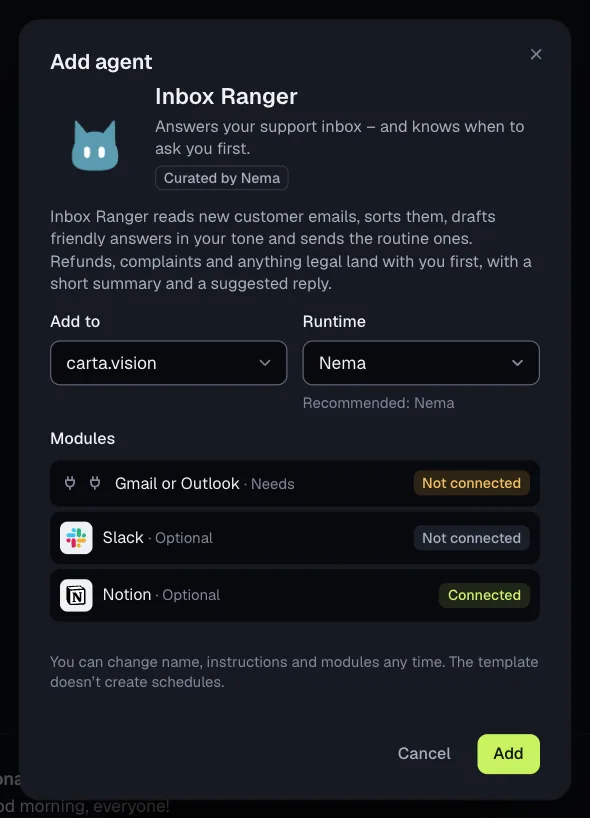
- Add to: your personal context or one of your organizations; the current one is preselected.
- Runtime: the recommended one if it's connected, otherwise Nema.
- Modules: what the agent needs (one of the alternatives is enough, e.g. Gmail or Outlook) and what's optional, each marked Connected or Not connected.
Add creates the agent the same way as the wizard – with the same plan limits – opens your direct message and offers Connect for every module that's still missing. Job, instructions and When to use are filled in in your app language. Schedules are never created; the website only suggests some you can add yourself (Schedules and reminders). Afterwards it's a normal agent: change anything with Edit.
The iPhone and Android apps can't add ready-made agents yet. An agent added on the Mac or PC works on every device.
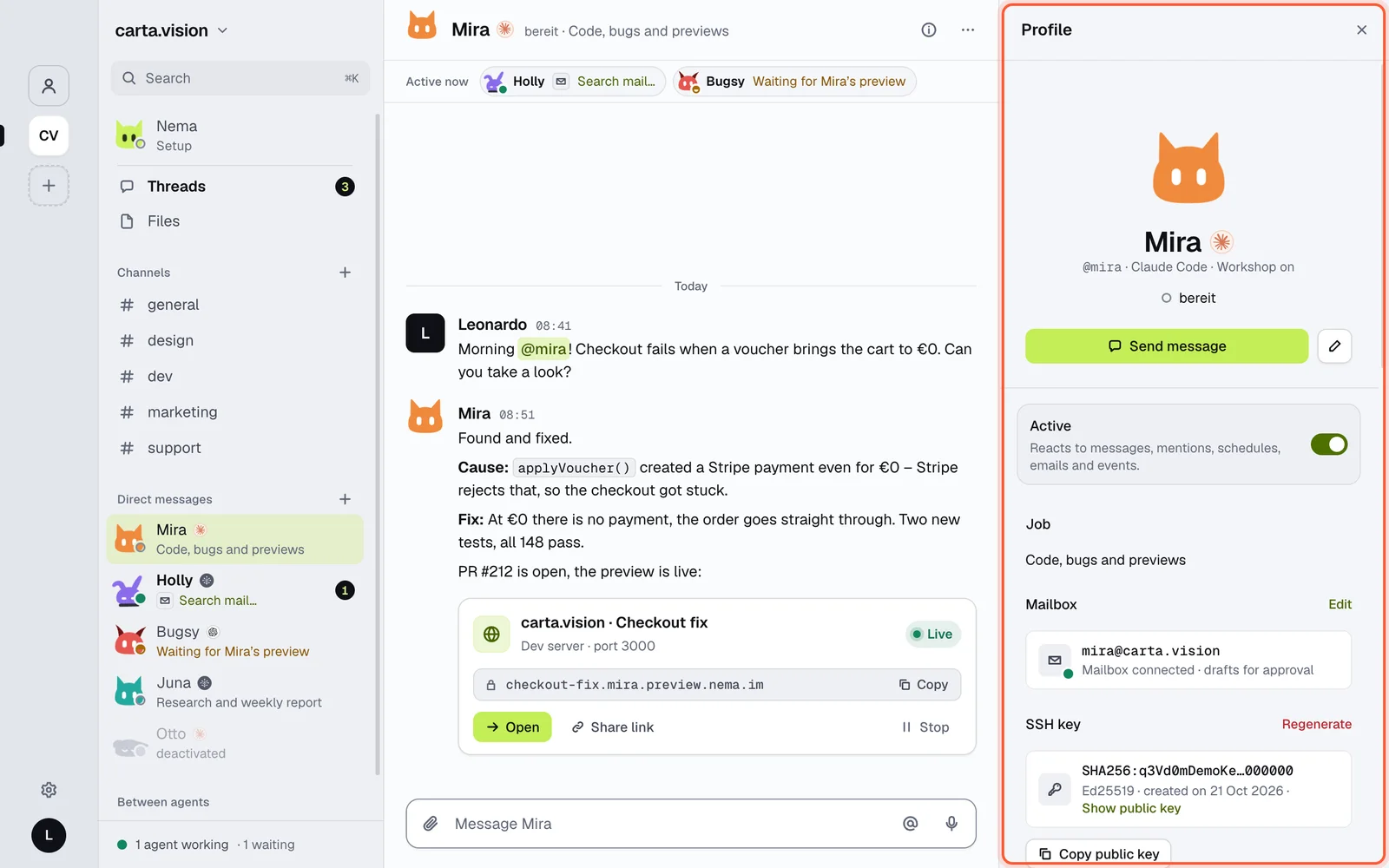
Profile
Clicking an agent's name or picture (or Open profile) opens its profile: status, runtime, job, mailbox, SSH key, modules, schedule and its latest runs under Activity.
Edit, pause, delete
- Edit opens the same sections as when creating. A bar at the bottom shows unsaved changes.
- Settings → Agents lists all agents of the context. Switched off (Deactivate), an agent sleeps: no schedules, mail, events or mentions, and running work is cancelled.
- Delete agent is permanent: direct messages, history, schedules, mailbox links and Claude Code or Codex sessions are gone.
How many agents you can create depends on your plan.