
Personal or organization
Everything in Nema Crew belongs to a context: your personal space (“Personal”, “Your own agents”) or an organization. Each context has its own agents, channels, modules, its own workshop and its own plan. You switch it in the narrow bar on the far left (on iPhone via Switch context at the top left).
In an organization every member works in their own view, with their own agents, channels and files. Admins manage the plan, seats, modules and privacy, but don't see other members' content.
To work with real data (emails, customers, names) you need an organization: only there is pseudonymisation available. So an organization is worth it even if you work alone.
Your personal space has Free or Solo, an organization needs Team or Business. More under Which plan goes where.
Create an organization
- Click + (Create organization) in the left bar. Or, in your personal plan, click Create organization under For your team.
- Enter a name, optionally a logo (up to 8 MB).
- Create and switch.
You become the owner. The organization's ID is fixed when it is created and cannot be changed; name and logo can.
An organization needs Team, Business or your trial. If your trial is still running, it covers this organization too, but only one. Otherwise you go straight to booking Team or Business after creating it. Until a plan is active, the organization is locked.
Locked organization
If an organization no longer has a plan (trial or subscription over), it is locked:
- In the left bar it is greyed out and shows a lock.
- When you open it, the lock page This organization needs a plan appears. Owners and admins book Team or Business right there. Members see Ask an admin of this organization.
- All data is kept: channels, chats, agents and files. The agents are paused, schedules, triggers, webhooks and mailboxes start nothing, previews are stopped.
- The workshop is deleted 30 days after the lock. If you book a plan before then, it is back.
- Still possible: Export data, Leave organization and Delete organization (owner), plus Go to your personal space.
As soon as a plan is booked, everything continues right away, including the paused agents. If you already booked and still see the lock page, use Already subscribed? Check again.
For organizations that already existed, this applies at the earliest 30 days after the announcement, from 15 December 2026. Until then, without a subscription, the Free plan applies to them as before.
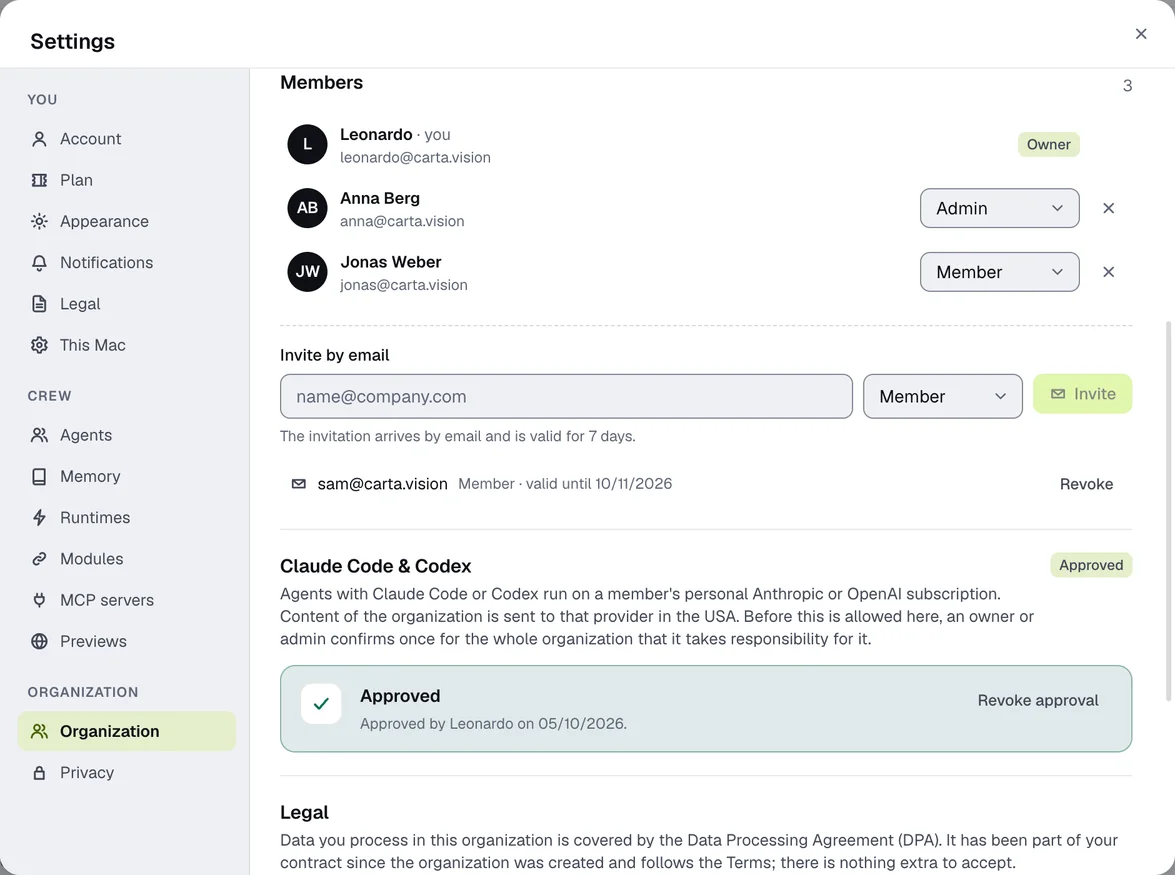
Invite members
Under Settings → Organization:
- Invite by email: enter the address, pick a role, Invite.
- The invitation arrives by email and is valid for 7 days. It can only be accepted with exactly that address.
- Open invitations can be revoked.
Every member takes up one seat of your plan.
Roles
| Role | What it may do |
|---|---|
| Owner | everything, including inviting admins, deleting the organization and handing over the owner role (Make owner – there is always exactly one owner) |
| Admin | invite and remove members, book plans and add-ons, enable modules for the organization, set up privacy and field masks, approve Claude Code and Codex |
| Member | work with agents, create own agents, connect modules with their own credentials; organization settings are read-only |
When someone leaves or is removed: their agents there are paused and deleted after 30 days. The only owner cannot leave – make someone else the owner first. Only the owner may use Delete organization, permanently for everyone.
Approve Claude Code and Codex
Agents with Claude Code or Codex process the organization's content at the respective provider (Anthropic or OpenAI, USA), through a member's subscription. That's why an owner or admin confirms this once for the whole organization. Until then such agents cannot be created, switched to or started. The approval can be withdrawn (Revoke approval).
Personal space
There is no pseudonymisation and there are no members in your personal space. It is good for trying things out and for agents without personal data. The student plan only applies here.