
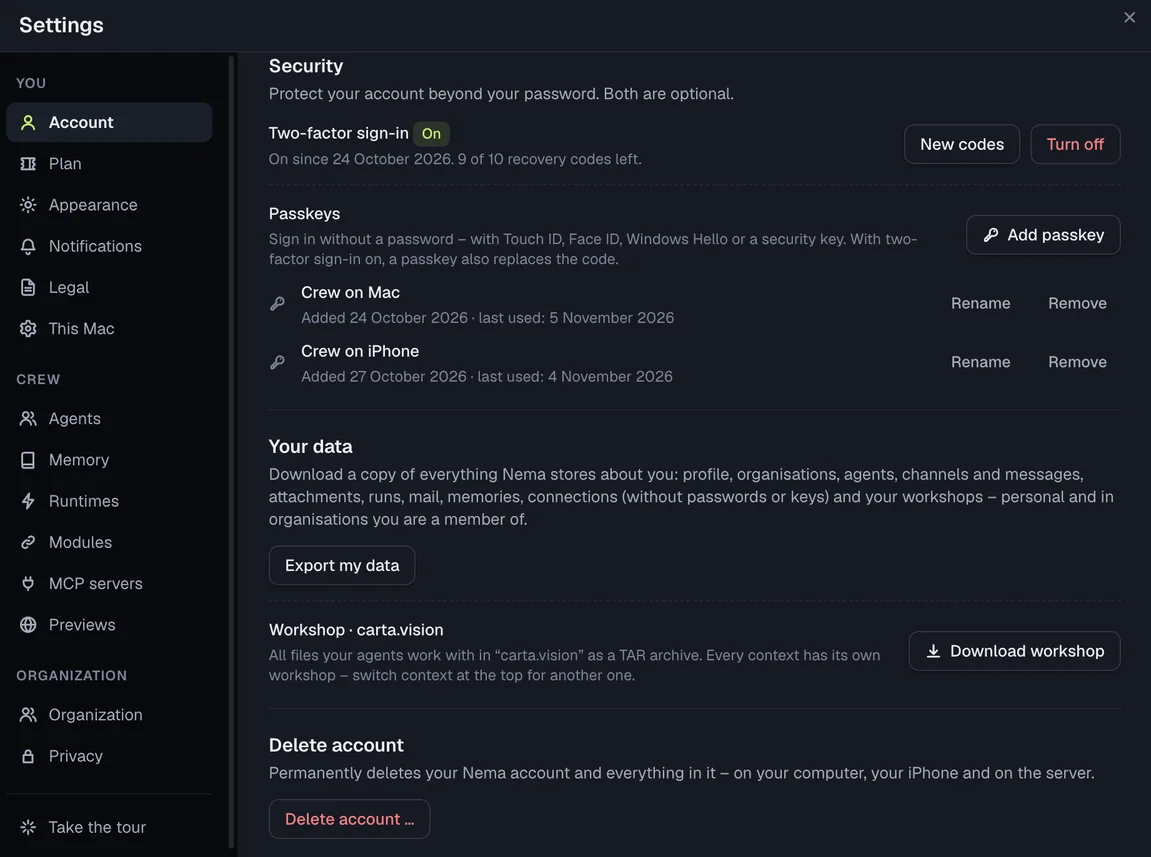
Both are optional. You find them on the Mac under Settings → Account → Security, on your phone under Settings → Account → Security.
Set up two-factor sign-in
With Two-factor sign-in on, signing in with your password also asks for a 6-digit code from an authenticator app (e.g. 1Password, Google Authenticator, Microsoft Authenticator). The code changes every 30 seconds.
- Choose Set up.
- On the Mac: scan the QR code with the authenticator app on your phone. On your phone: Open in authenticator app hands the key over directly; you can scan the QR code with a second device. You can also enter the key by hand.
- Enter the code the app shows for Nema and choose Turn on.
- Crew now shows you 10 recovery codes – only this once. Copy them or save them as a file (on the phone: Share or save), for example in your password manager, and confirm with I've saved the codes.
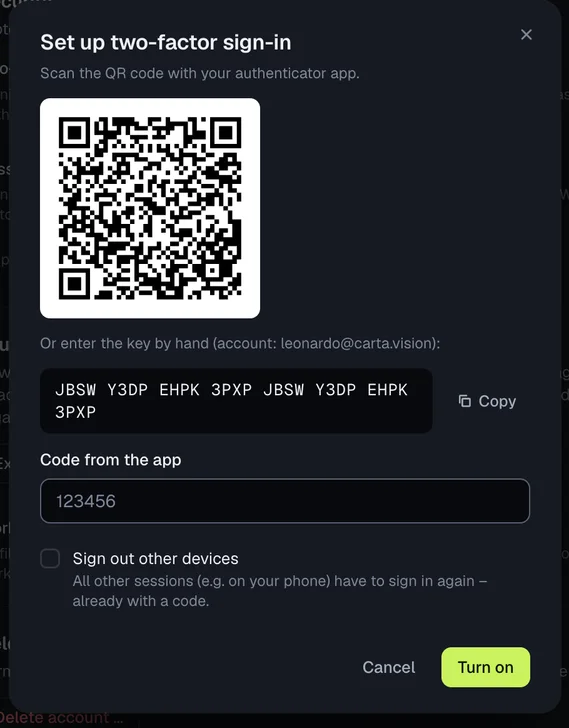
Sign out other devices: if you tick this when turning it on, all other sessions (for example on your phone or a second computer) have to sign in again – already with a code. The device you're on stays signed in. Without the tick, existing sign-ins stay valid.
You get an email confirming it's on.
Sign in with a code
After email and password, Confirm sign-in appears. Enter the code from the app – or choose No access to the app? Use a recovery code. If you have a passkey, Confirm with a passkey works too.
- The step is valid for 5 minutes. After that, sign in with your password again.
- The same code works only once. After 5 wrong codes the sign-in starts over; after 10 wrong codes within 15 minutes Nema blocks further attempts for 15 minutes.
- Each recovery code works only once. How many are left is shown under Security.
- A new password via Forgot password? doesn't turn two-factor sign-in off: signing in still needs the code afterwards.
Turn off and new codes
- Turn off: confirm with a current code from the app, a recovery code or your password. After that your password (or a passkey) is enough to sign in again. You get an email about this too.
- New codes (on the phone New recovery codes): creates 10 new recovery codes; the previous ones stop working. You confirm with a code or your password as well.
Without the app and without a recovery code you can't get into your account on your own any more, so keep the codes safe. In an emergency, write to support@nema.im.
Passkeys
With a passkey you sign in without a password – with Touch ID, Face ID, Windows Hello, your phone's screen lock or a security key. The passkey lives in your keychain or password manager; Nema only stores its public key.
Add a passkey:
- Under Security → Passkeys, choose Add passkey.
- On the Mac a Nema page opens in your default browser, on the phone a system window. Confirm there with Add passkey and your fingerprint, face or device passcode.
- Crew continues on its own and shows the new passkey in the list (“Crew on Mac”, “Crew on iPhone” …). You get an email about it.
You can add several passkeys, rename and remove them. Also delete a removed passkey in your keychain or password manager.
Sign in with a passkey: on the sign-in page choose Sign in with a passkey, confirm in the browser or system window – done, no password. With two-factor sign-in on, the passkey also replaces the code.
Good to know:
- The browser has to support passkeys (current Safari, Chrome, Edge and Firefox). On the Mac, Crew uses your default browser for this because the app itself can't reach the iCloud keychain.
- A passkey belongs to nema.im – it works in Crew on all your devices as long as your keychain or password manager syncs it there.