
With your permission an agent sees and uses your Mac or Windows PC: screenshots, windows, mouse, keyboard, files, shell. Tasks only arrive while the app is running and the device is on. This is not available on Linux.
Set up the device
Settings → This Mac (Windows: This computer):
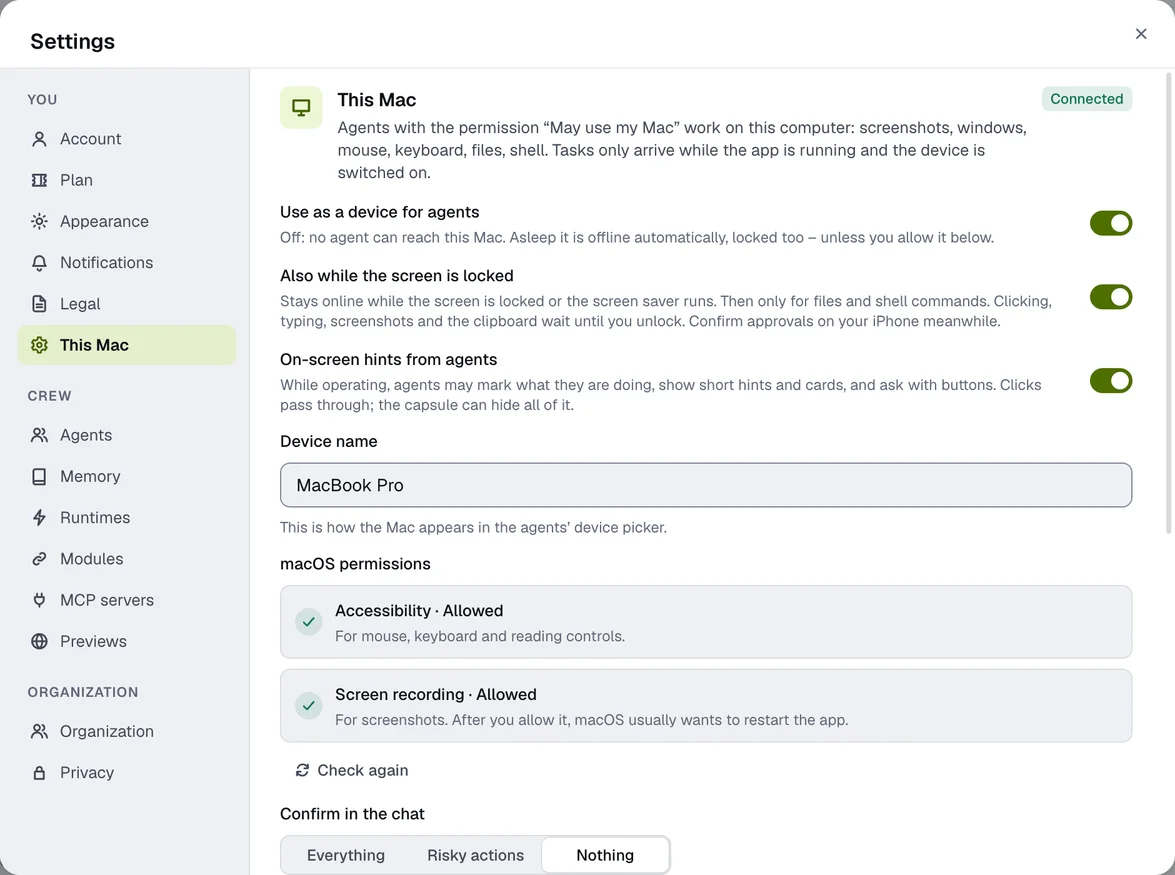
- Use as a device for agents – off, and no agent reaches this computer. It is offline while asleep.
- Also while the screen is locked – stays online, but only for files and shell; clicking, typing and screenshots wait until it is unlocked.
- On-screen hints from agents – agents highlight what they are doing and show short hints.
- Device name – how it appears in the device picker.
- macOS permissions: Accessibility and Screen Recording (Allow …, Check again). Windows needs none.
Allow it per agent
In the agent's editor under May use my Mac: Off, View only or Control. You also pick the device – the Mac you used last or a fixed one.
Approvals and log
Under Confirm in the chat you decide what you confirm beforehand:
- Risky actions (default): keyboard, shell, reading the clipboard and reading, writing or deleting files ask first.
- Everything or Nothing.
The agent then asks in the chat: “‹Name› wants to … on your Mac” – Allow or Deny. You can answer on the computer and on the iPhone; without an answer it is denied after about 90 seconds.
Folders readable without asking releases individual folders. Keys, passwords, browser data, .env and certificate files always stay blocked. Every action is listed in the Log.
While an agent is in control, a capsule “‹Name› is controlling your Mac” shows the current step and a stop button. On Windows an agent cannot use admin windows or UAC prompts; the shell is PowerShell.
Each agent also gets its own pointer in the colour of its cat, with its cat and name below it. Your own mouse pointer stays where it is: the agent presses buttons without it, and where it has to click for real, your pointer jumps straight back. You see where it is about to click: the pointer glides there first, then the click follows (a short ring); while typing it shows three dots. If several agents are working, each has its own pointer, which stays at its last spot until that agent is done. The pointers never take clicks and never show up in the agents’ screenshots – on Mac and Windows, on every display.
Push-to-talk and the Nema cat
If you like, the Nema cat sits at the edge of your screen. Hold the push-to-talk key and speak; when you let go, your message goes to Nema and the answer appears in the capsule.
| Mac | Windows | |
|---|---|---|
| Push-to-talk key (default) | right ⌥ | right Ctrl |
| other choices | right ⌘, Fn/🌐, F13 | right Alt (Alt Gr), F13 |
| without holding (toggle) | ⌘ ⇧ Space | Ctrl ⇧ Space |
On the Mac, holding a key needs the “Input Monitoring” permission. Very short key presses are ignored.
Dictation
The microphone in the input (Dictate, ⌘ ⇧ D or Ctrl ⇧ D) writes down what you say. Esc cancels. Nothing is ever sent automatically.
Menu bar, notification area and start at login
On the Mac the app lives in the Dock and the menu bar, on Windows in the notification area of the taskbar – closing the window doesn't quit it there. The menu lets you open Crew, show or hide the Nema cat, check for updates and quit. Open at login starts the app with your computer.